Are Free Notion Templates Enough? What You Get and What Is Missing (2026)
A free Notion template can be all you need. Use these seven checks to see whether it includes the views, setup help, mobile layout, and upkeep your routine needs.
By Her's Notion Planner by Cosmo Suite · Editorial policy
Published · 8 min read
Free Notion templates can be enough when one helps you do the thing you opened Notion to do. Judge a template by whether you can find the next task, update a habit, and see what needs attention without rebuilding the setup each week.
Before you duplicate a template, check its working pages, setup instructions, linked views, phone layout, automation claims, price, and theme options. This seven-part check gives you a fair way to compare a free gallery template with a paid one. If the free option fits your routine, keep it. If it leaves a specific gap you care about, you can decide whether a different template is worth paying for.
In a Nutshell
- A free template is enough if it handles the task you need and feels easy to keep using.
- Check the working pages and the copy you receive, not only the gallery cover.
- Pay for a specific time-saving feature or connected setup you have tested.
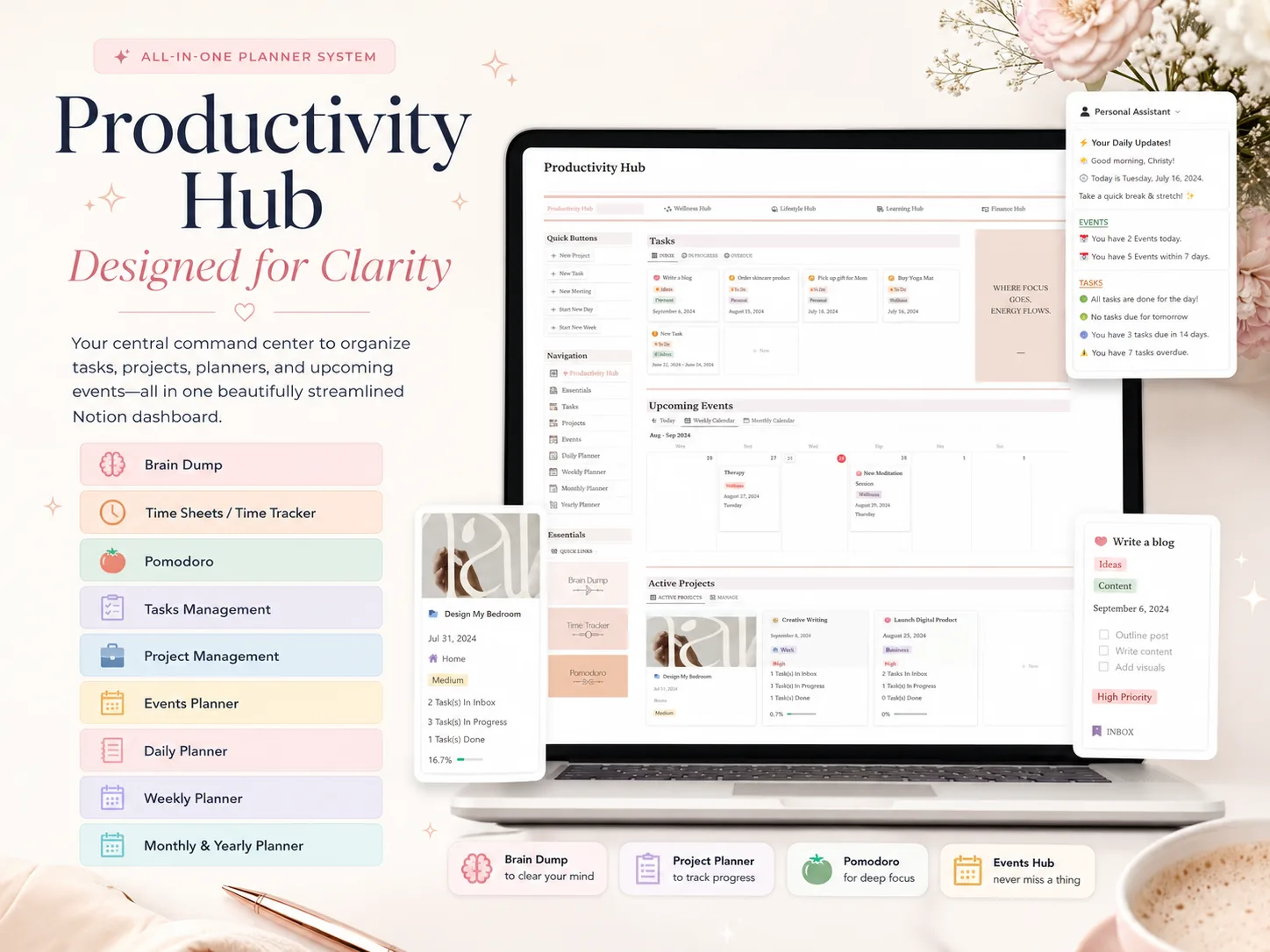
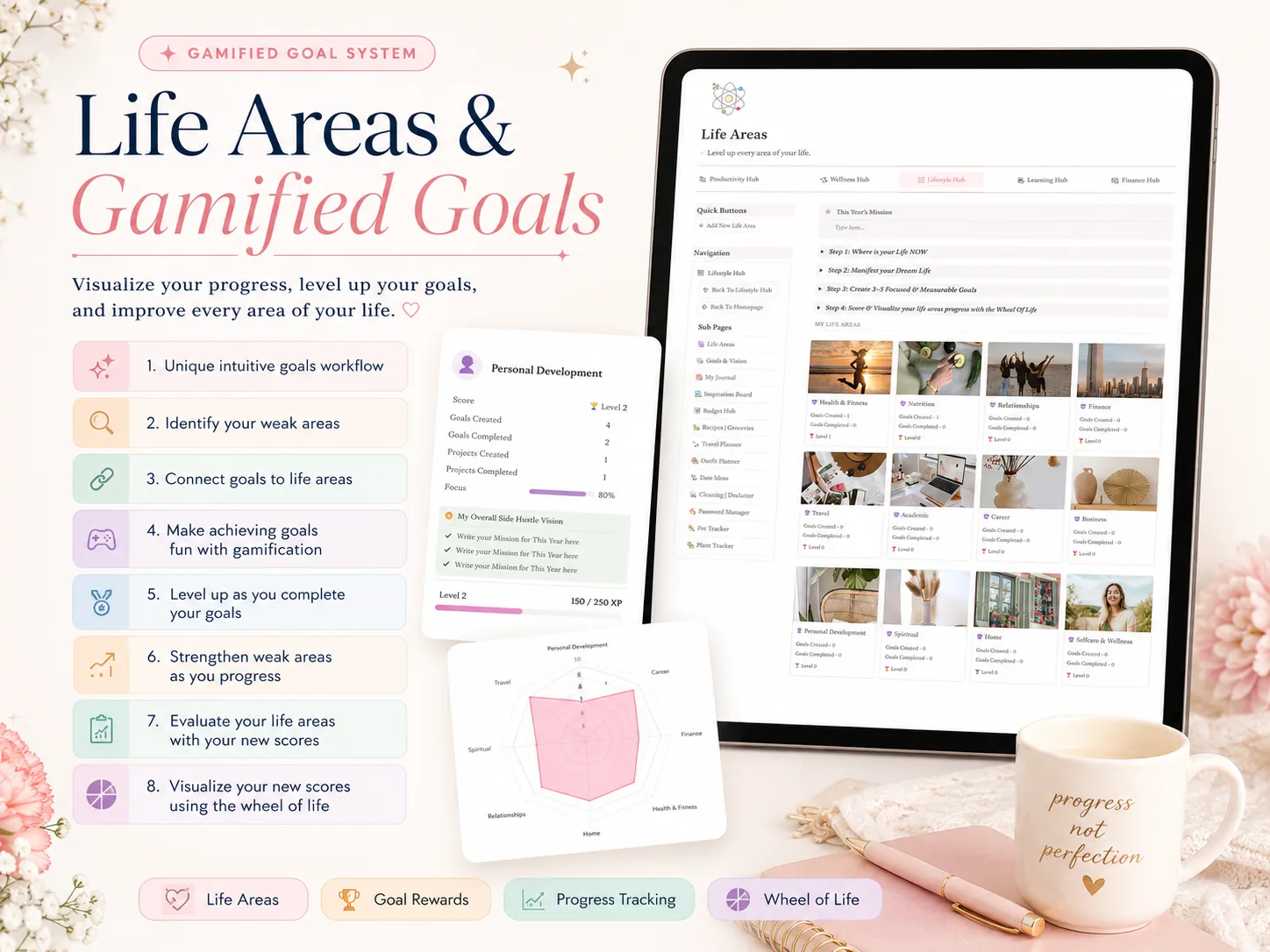
For a broader look at layouts, see our guide to choosing a Notion template for personal planning. Her's Notion Planner is another option, with five hubs and desktop, tablet, and phone dashboards; you can see what is included before deciding.
A template is only useful after the first week
A template preview can show a polished home page while hiding the pages you will use every day. The better test is simple: can you complete one real task with the template, then find the result again tomorrow?
A Notion template is a set of pages and, sometimes, databases arranged for a task. Its value depends on whether that arrangement makes the task easier for you to repeat. A gallery listing is only evidence when it shows the relevant pages or explains what comes with the template.
Notion lets people duplicate public pages into their own workspace and customize them. Its help guide also warns that some blocks may appear as “No access” when they were not intended to be duplicated. So check the copy itself. A public demo is a sample, not proof that every linked page or database is available in your copy.
Try one small task before you commit to the layout. Add a task, mark a habit, or write a note, then return to the home page and look for it. If you have to search through several pages to locate the entry, the template may need edits or may not fit how you plan.
The seven checks to use before you choose
Score each check as clear, unclear, or missing. “Clear” means the preview or instructions show you how the template handles it. “Unclear” means the listing makes a claim but does not show the working page. “Missing” means you cannot find the feature or would have to build it yourself. This is a comparison rubric, not a rating of a creator or a guarantee of quality.
| Check | What to look for | A useful question |
|---|---|---|
| Working pages | A view beyond the cover or dashboard | Can I see where entries go? |
| Setup guide | Instructions for duplicating and adapting the template | Can I begin without guessing? |
| Connected views | Related information shown where it is useful | Do I enter this once or copy it around? |
| Phone layout | A preview or actual mobile test | Can I do my common action on my phone? |
| Automation | A specific example of what updates by itself | What changes without manual steps? |
| Price and terms | Current price and what the purchase includes | What am I paying for, and how is access delivered? |
| Light and dark themes | Screens in the theme you prefer | Is text still easy to read? |
A linked database view is a way to show records from another database on a page. Notion's database guide explains that one database can have several views, each with its own layout, filters, and sorts. A template that shows a task list in more than one context may save repeated entry, but the listing should make that connection visible. Look for the same item appearing in a filtered view, not just several attractive screenshots.
The phone check deserves its own test. Open the duplicated page on your phone and do the task you expect to repeat. Can you find the right button, read the key information, and add an entry without horizontal scrolling? A desktop mockup cannot answer those questions.
How to compare free and paid choices fairly
A template listing preview is a sample of the pages a creator chooses to show. It may not show every page, permission, or step in the template. The official Notion Marketplace free-template filter is one place to start. Search by the job you need done, such as weekly planning or journaling, then open the actual page preview. The number of free listings changes, and a large gallery does not tell you whether an individual template is complete.
Use the same seven checks on every candidate. A free template might be plain and still pass because its pages work and you can make the changes you want. A paid template may save setup time if it includes clear instructions, useful connected views, and the device layout you need. Neither price label tells you whether the system will suit your week.
If a listing says “automated,” ask what action is automatic. Does a status change update another view? Does a date appear on a calendar? Or is “automation” describing a manual routine? Notion's current pricing page is the place to verify plan limits for a feature you rely on. Feature availability and prices can change, so check them on the day you choose.
The same applies to a paid template. Confirm the live price, what files or pages are included, how you receive access, and whether the template can be duplicated. If a listing does not answer those questions, ask the creator before paying. Do not assume a preview includes every page in the finished template.
Run a short test with your actual routine
Choose one task that currently feels scattered. For example, you might want a weekly plan that connects tasks to the areas of life they belong to. Use a free template for a few days and write down each point where you stop to search, copy information, or make a page work on your phone.
Try the same test with each option:
- Duplicate the template and check that its linked pages are present.
- Add one example task, then find it in the views you expect to use.
- Open the page on your phone and repeat the task there.
- Note any step you must set up or repeat by hand.
For a weekly planner, the example could be one task such as “book dentist appointment.” Add it once, then check whether it appears in both the week view and the area where you plan appointments. This is a test entry, not a claim about how any particular template works. The same task makes the comparison concrete: you can see whether a page is linked, whether the phone view is workable, and what you would need to configure yourself.
Then separate necessary changes from decoration. Renaming a page or changing its cover is a preference. Adding a missing database view or rebuilding the mobile dashboard takes more setup. Your notes show which kind of work you would be taking on.
If you want to stay with the free template, keep only the pages you use. Notion's duplicate-page guide explains how to add public pages to a workspace and customize them. After duplicating, remove inaccessible blocks and test the links you plan to use. A simpler system you understand is easier to maintain than a large template full of unused pages.
What the free-template pages tell you at a glance
Use a listing to shortlist templates, then open the template to inspect its pages. On 24 October 2026, I checked two listing pages against the seven questions above. I did not duplicate or test every template linked from them.
| Page checked | What its page shows | What to check after opening the template |
|---|---|---|
| Notion's free weekly-planner category | Free weekly-planner entries with template names and creators | Setup instructions, phone layout, connected views, theme choices, and what the creator's page includes |
| Notion Everything's free-template roundup | A roundup grouped by use. Its Goal Tracker entry describes deadlines, progress, and custom tabs | The roundup does not establish how that linked template works on a phone or how to set it up; open the creator's page to check |
The roundup's Goal Tracker description is enough to decide whether goals and deadlines sound relevant. It does not tell you if the template's layout fits your phone or whether its progress view matches how you plan. Treat each description as a starting point, then use the preview and duplicate-page test to confirm the details.
Her's Notion Planner's product page lists its five hubs, Second Brain 2.0 with an integrated P.A.R.A system, setup guide, and dashboards for desktop, tablet, and phone. That information makes it easier to check those specific contents on the page. You should still test whether the layout suits your routine and read the current price and purchase terms.
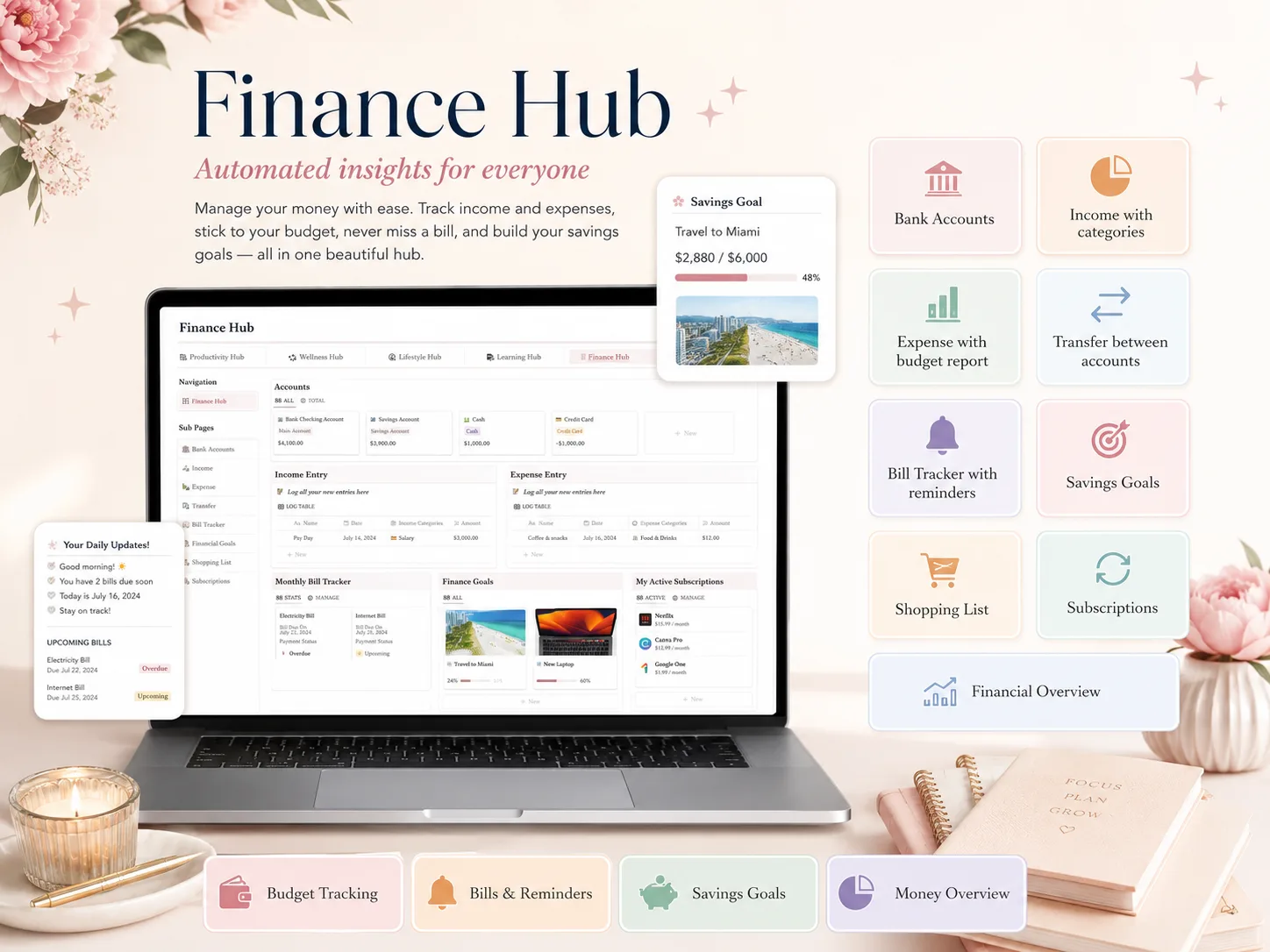
If the test reveals that you want a connected setup across planning areas, Her's Notion Planner includes Productivity, Wellness, Lifestyle, Learning, and Finance hubs, plus a Second Brain 2.0 with an integrated P.A.R.A system. It is a paid template at a listed one-time price of $9, and it includes light and dark themes and dashboards for desktop, tablet, and phone. Details can change, so check the current product page before purchase. You can also compare its aesthetic layout and hubs with the seven checks above.
Keep the template that asks the least of you
A free page with a few edits can be all you need. A paid setup may save you from connecting views yourself. Compare the setup work each choice leaves you. A listing's screenshot and page counts do not tell you whether it suits your week.
Use the template for one real task, check its copy, and test the phone layout. If you can find your information and keep the routine going, you have enough. If a gap keeps interrupting you, name that gap before you compare another option.
Sources and verification
- Notion's Help Center, Duplicate public Notion pages, checked 24 October 2026. It describes duplicating a public page and notes that inaccessible blocks may appear in a copy.
- Notion's Help Center, Views, filters, sorts & groups, checked 24 October 2026. It explains database views and their settings.
- Notion's pricing page and free template gallery, checked 24 October 2026. Verify current plan details and listings before relying on them.
- Notion's free weekly-planner category and Notion Everything's free-template roundup, checked 24 October 2026. Template listings and summaries may change.
Her's Notion Planner is made by Cosmo Suite, which also publishes this guide. We use the same checklist for our own template. Read about us and our editorial policy to see how we make and check posts. For a correction, contact Her's Notion Planner. Check current product details and Notion's terms before you decide.
Frequently asked questions
Are free Notion templates good enough for personal use?
Often, yes. If a free template has the pages and views you need, opens comfortably on your devices, and you can maintain it, there is no need to pay for a larger system.
What should I check before duplicating a free Notion template?
Preview the working pages, check what the template includes, test the phone layout, and read the setup instructions. Make sure any linked pages are included and available to duplicate.
Can I customize a free Notion template after duplicating it?
Yes. Notion says a duplicated public page can be edited in your workspace. Some blocks may show No access if they were not meant to be duplicated, so inspect the copy before relying on it.
When is a paid Notion template worth it?
It may be worth paying when the actual pages match your routine and the setup guide, connected views, or device layouts save work you would otherwise do yourself. Compare the working preview and current price before buying.
Does a free Notion template include automations?
That depends on the template and the features used. A listing image alone cannot confirm what runs automatically. Check the live preview and Notion's current plan details for any feature you need.
How do I know a Notion template works on my phone?
Open the duplicated template in the Notion mobile app and try the action you expect to do most, such as adding a task or checking a habit. A desktop screenshot does not show whether the key controls are easy to reach on a small screen.
What is the fastest way to choose a Notion planner template?
Write down the one task you want to make easier, test a free template against that task, and note what is missing. Pay only if a specific missing piece matters enough to justify the cost.